How to Guide: Install an NVMe SSD in PlayStation 5 (PS5 Original, PS5 Slim, and PS5 Pro)
In this article, we'll explain why upgrading your PS5's internal storage is worthwhile, what specifications to consider when choosing an SSD, and recommend several hard drives that offer stable performance.
## Why Upgrade Your PS5's Internal Storage
Increasing your PS5's internal storage is one of the simplest ways to expand your console's capacity and prepare for future gaming needs. While the built-in SSD offers excellent performance, available storage space quickly fills up as your game library grows. Installing an additional NVMe SSD will give you more space to install new games without frequently checking storage space or uninstalling existing ones.
This is also a practical way to "move your console forward." As game sizes and update demands continue to grow, adding a large capacity of internal storage now ensures your PS5 will still have enough room to run larger games for years to come.
## AAA Game Size vs. Available Console Storage
Many AAA titles today typically require around 80GB to 150GB of storage space, and this often increases further with updates, patches, and DLC.
When installing multiple large games simultaneously, the PS5's available internal storage quickly becomes insufficient. For example, the original PlayStation 5 offers 825GB of internal storage, but due to the significant space occupied by the operating system (OS) and system files, only about 667GB is actually available for games.
When storage space is insufficient, players often need to delete old games to install new ones, or re-download games they want to play again. Adding an NVMe SSD to your PS5 avoids the problem of frequently managing storage space, allowing you to keep more games on hand and switch between them freely.
## PS5 Console Model Differences: Original vs Slim vs Pro
While different PS5 models differ slightly in design and performance, they all face the same internal storage limitations and support storage expansion. Whether you're using the launch edition PS5, the slimmer PS5 Slim, or the more powerful PS5 Pro, understanding the differences between these consoles will help you prepare before installing an NVMe SSD.
* The original PS5 comes with an 825GB internal NVMe SSD using a PCIe Gen4 x4 interface and has a relatively large chassis. While its performance is sufficient for current games, storage space can easily fill up, making an SSD upgrade a practical choice. It supports standard M.2 2280 high-speed NVMe SSD expansion.
* The PS5 Slim has a smaller, more compact chassis and upgrades to a 1TB internal SSD. Although the chassis is thinner and the cooling design is slightly different, it still supports NVMe SSD expansion upgrades.
* The PS5 Pro boasts more powerful CPU and GPU performance and comes with a 2TB internal SSD, providing significantly more native storage compared to the original PS5 and PS5 Slim. Despite the increased internal capacity, SSD upgrade compatibility remains unchanged; the process and requirements for installing an NVMe M.2 SSD are exactly the same as the original and Slim models.
Overall, all three PS5 models support expandable internal storage, and the installation process for a compatible NVMe SSD is identical.
A Kingston FURY Renegade SSD with a heatsink and a screwdriver sits next to the PlayStation 5 console.
## PS5 SSD Specifications and Compatibility Checklist
Before upgrading your PS5 NVMe SSD, you first need to ensure the drive meets the console's requirements.
The PS5 supports PCIe 4.0 NVMe M.2 SSDs and requires high read/write speeds to ensure smooth gameplay. Even using a Gen5 SSD will not provide an additional performance boost. Furthermore, the SSD's physical size and heatsink height are crucial; they must fit the expansion slot and prevent overheating. Ensuring the SSD meets these specifications will make the installation process smoother and ensure optimal PS5 performance.
## Required Specifications: Read/Write Speed, PCIe Version, and Size
NVMe SSDs used for PS5 upgrades must support PCIe 4.0 and have sequential read speeds of at least 5,500MB/s to ensure smooth game loading and performance.
Additionally, the SSD must be compatible with the PS5's expansion slots and meet Sony's heatsink height restrictions—the total height must not exceed 11.25mm. This ensures proper heat dissipation, prevents performance degradation due to overheating, and guarantees correct installation.
While some Gen5 SSDs are physically compatible, Sony has not explicitly supported them. Furthermore, since the PS5 only runs at PCIe 4.0 speeds, Gen5 SSDs do not offer any additional performance advantage. Some Gen5 SSDs generate more heat or use larger heatsinks, and may even exceed the console's size limits.
## Recommended SSD for PS5 Upgrade
For PS5 NVMe SSD upgrades, we recommend the Kingston FURY Renegade with a heatsink. This drive boasts read speeds up to 7,300MB/s and features an internal aluminum heatsink design for effective temperature reduction.
To more clearly demonstrate the Kingston FURY Renegade's performance in the PS5, we've provided internal test results in the table below. These include compatibility information, benchmark performance, transfer speeds, and real-world user experience, helping you understand the performance you'll expect after installation.
| Sony PlayStation® 5 Compatibility | Kington FURY Renegade SSD with Heatsink |
|---|---|
| OS Support | Software version: 21.02-04.00.00.42-00.00.00.0.0 or later |
| Socket | Any supporting NVMe M.2 2280 / double-sided SSDs |
| Physical Install | ? |
| PS5 Read Benchmark Rating | up to 6,570MB/s |
| Format Success | ? |
| Formatted Capacity | 1TB: 1.00TB 2TB: 2.00TB 4TB: 4.00TB |
| File Transfer Stat 1 (Transfer a PS5 title, “Pathless” ~4.03GB) | 4.2 seconds |
| File Transfer Stat 2 (Transfer a PS4 version of “FFVII” ~86.07GB) | 58 seconds |
| File Transfer Stat 3 (While downloading “COD” in background, multiple games ~208GB being transferred from built-in storage to M.2) | under 3 minutes |
| Game Play | No change in game play with the benefit of up to 3x the storage |
PS5 SSD Installation Guide
Before you begin, ensure your PS5 is updated to the latest system software to correctly recognize and format the newly installed SSD.
After the update is complete, turn off your PS5, unplug all cables and external devices, and wait a few minutes for the console to cool down. Once ready, you can begin installing the PS5 NVMe SSD:
- Place your PS5 on a flat surface with protective pads and remove the dock.
- Adjust your PS5 so the PS logo is facing down and the power button is facing away from you.
- Gently lift the cover with your right hand.
- Slide the cover off using your left thumb while stabilizing the console with your left fingers.
- Once opened, you will see a rectangular metal cover covering the expansion slots, secured at the top with a screw.
- Use a Phillips screwdriver to unscrew the screw and remove the cover. Be careful not to let the screw fall into the console's fan.
- After removing the expansion slot cover, you will see a green area containing five expansion slots.
- Remove the screws and washers from the current slot.
- Set the screws aside and move the washers to the positions corresponding to your M.2 SSD size.
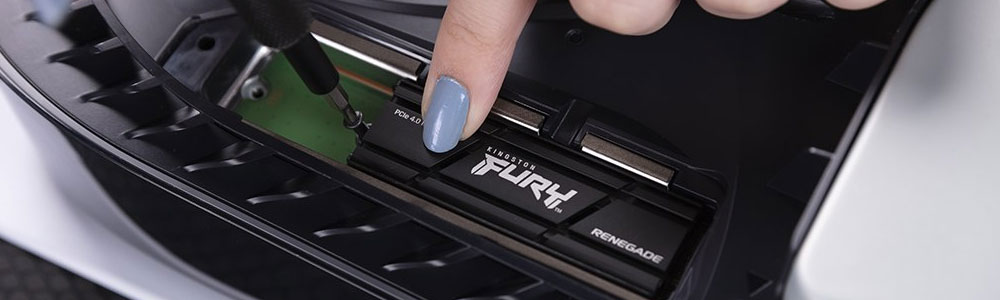
- Hold the Renegade SSD with the heatsink by the edge, align it with the notch on the expansion connector, and firmly insert the SSD into the connector from an upward angle.
- Press the SSD down flat and secure it in place with the screws.
- When reinstalling the cover, first slightly align it with the outer edge of the top edge, then slide it back into place. You will hear a "click" when the cover is fully in place.
Formatting a New NVMe SSD on PS5
After reinstalling the PS5 casing and connecting all cables, you can turn on the PS5. When the system detects the newly installed SSD, a formatting prompt will automatically appear.
Please follow the on-screen instructions to complete the formatting of the new NVMe SSD.
Do not turn off the power during the SSD formatting process or while saving data. Doing so may result in data loss, data corruption, or even damage to the SSD or the PS5 console.